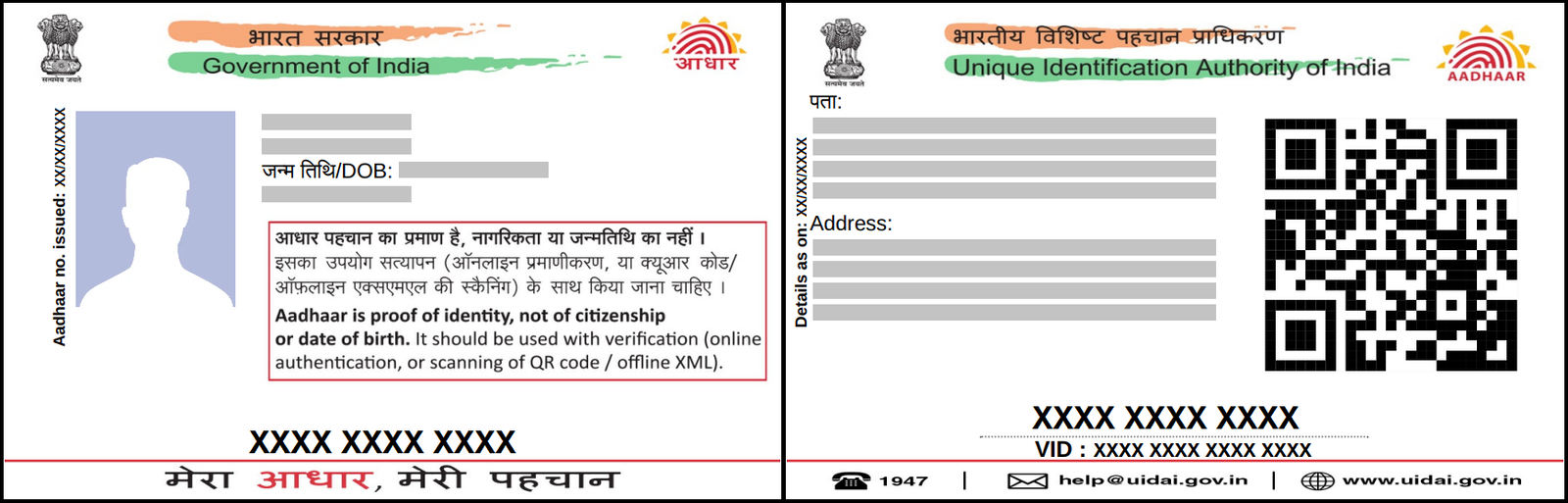

If you’re wondering how to download Aadhaar card quickly and without any hassle, you’re in the right place. The UIDAI (Unique Identification Authority of India) has made the whole process digital, so you can get a printable copy of your Aadhaar from the comfort of your home. Below, I’ll walk you through everything you need to know—what you’ll need, where to click, and a few tricks to avoid the common hiccups most people hit.
Why Downloading Your Aadhaar Matters
- Proof of identity: Banks, mobile providers, and government services ask for it.
- Convenient backup: A PDF copy is easy to store on your phone or cloud.
- No waiting for a physical card: If your printed card is lost or damaged, the digital version works just as well for most transactions.
What You’ll Need Before You Start
| Item | Why It’s Needed |
|---|---|
| Aadhaar Number (UID) or Enrollment ID | This is the primary identifier UIDAI uses to fetch your data. |
| Registered Mobile Number | OTP (One‑Time Password) is sent here for verification. |
| Internet connection | A stable connection prevents time‑outs while the portal loads. |
| A device that can print PDFs (optional) | If you want a hard copy right away. |
Tip: If you don’t remember your Aadhaar number, you can retrieve it using your Enrolment ID (the 14‑digit number you got on the acknowledgment slip when you first enrolled).
Step‑By‑Step: How To Download Aadhaar Card
1. Open the UIDAI Official Website
- Go to uidai.gov.in.
- Choose Your Language
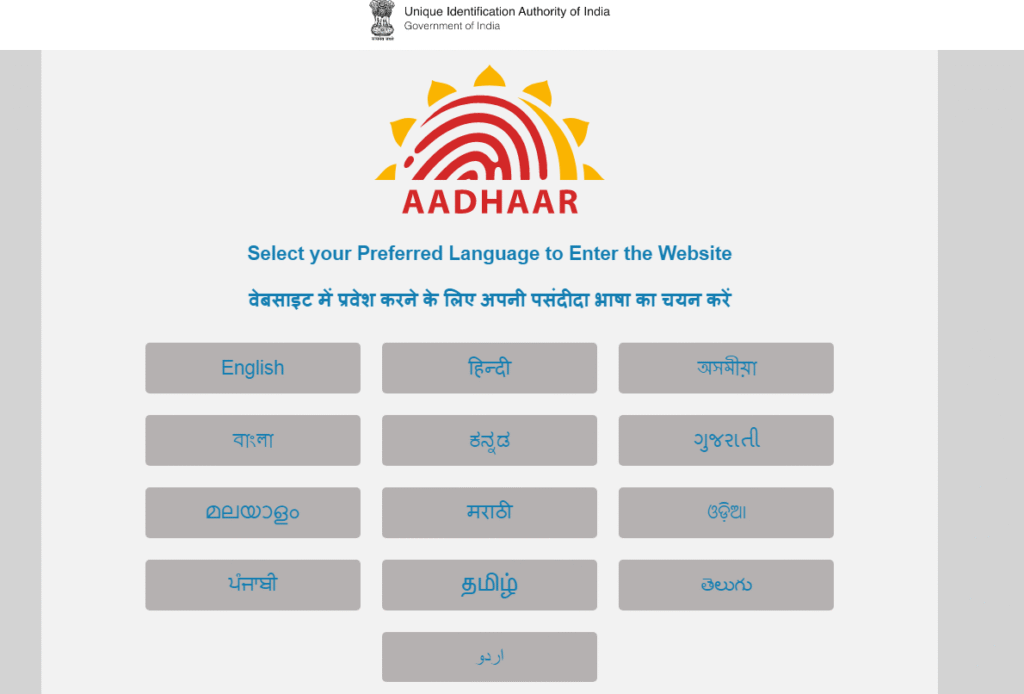
2. Choose the Right Option
You’ll see three boxes:


- Hover over “My Aadhaar” and click “Download Aadhaar” (or directly type download aadhaar into the search bar on the site).

- Aadhaar Card (PDF)
- e‑Aadhaar (PDF) – With Photo
- Aadhaar XML
For most people, the Aadhaar Card (PDF) is the one you want. It looks just like the printed card but in a digital format.
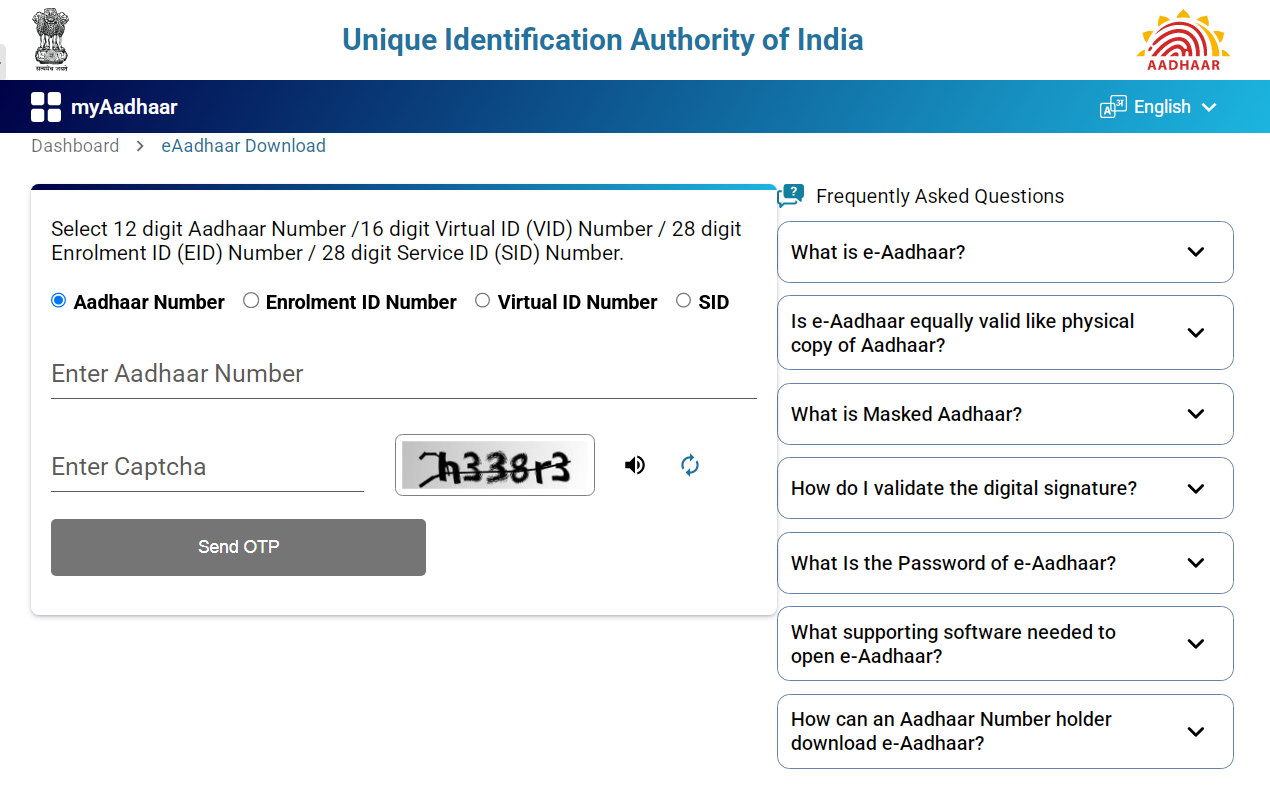
3. Enter Your Details
- Aadhaar Number (or Enrolment ID)
- Full Name exactly as it appears on the card
- Pin Code of your registered address (you can also enter the full address line, but the pin is quicker)
Quick tip: Double‑check the spelling of your name; a single extra space can cause an error.
4. Solve the CAPTCHA
A small image with letters or numbers will appear. Type exactly what you see. It’s a tiny step, but it stops bots from flooding the system.
5. Click “Send OTP”
An OTP will be sent to the mobile number you provided during enrolment. It usually arrives within a few seconds.
6. Verify the OTP
Enter the six‑digit code in the field that appears. If the code has expired, you can request a new OTP, but wait a minute before hitting “Send OTP” again.
7. Download Your Aadhaar
- Once the OTP is verified, the portal will generate a PDF.
- Click “Download Aadhaar” and choose a location on your computer or phone.
Your Aadhaar PDF password is a combination of the first four letters of your name in capital letters followed by your Year of Birth (YYYY) (e.g., RAHU1991 for Rahul born in 1991).
8. Open and Print (Optional)
- Open the PDF with any standard viewer (Adobe Reader, Chrome, etc.).
- Verify the details are correct. If everything looks good, you can print a hard copy.
Pro tip: Save the PDF to a cloud storage service (Google Drive, OneDrive) so you can access it from any device later.
Common Issues & How to Fix Them
| Problem | Likely Cause | Quick Fix |
|---|---|---|
| OTP never arrives | Mobile number not updated, network issue, or number is inactive. | Verify your number is correct; try again after 5‑10 minutes. If it still fails, visit a nearby Aadhaar enrolment centre to update the number. |
| “No records found” message | Wrong Aadhaar/Enrolment ID or name mismatch. | Re‑enter details carefully. Remember that the name field is case‑sensitive and includes spaces. |
| PDF password not accepted | You used the wrong date format. | Use DD/MM/YYYY exactly, including leading zeros (e.g., 07/09/1990). |
| File won’t open | Corrupted download due to unstable internet. | Re‑download the PDF using a stable connection; avoid using public Wi‑Fi if possible. |
Extra Tips for a Smooth Experience
- Use a Desktop/Laptop for the first download – The site can be a bit finicky on mobile browsers, especially when dealing with CAPTCHAs.
- Clear browser cache before you start. A fresh session reduces the chance of old cookies causing errors.
- Keep a digital copy on multiple devices – Save it on your phone, laptop, and a cloud drive. That way, you’ll never be caught off‑guard when a form asks for your Aadhaar.
- Avoid public computers for downloading. Since the PDF is password‑protected, you don’t want someone else to see the password or your personal details.
- If you’ve changed your address or name, first update those details at an Aadhaar enrolment centre. The portal only shows the data linked to your current registered address.
Frequently Asked Questions (FAQs)
Q1: Can I download my Aadhaar without the OTP?
No. UIDAI requires OTP verification to protect your personal information. If you no longer have access to the registered mobile number, you’ll need to update it at an enrolment centre before you can download the card.
Q2: Is the e‑Aadhaar (PDF) legally valid?
Absolutely. The e‑Aadhaar is digitally signed and accepted by banks, telecom operators, and government agencies just like the printed version. Make sure you keep the PDF intact and don’t edit it.
Q3: What if my mobile number isn’t registered?
You can still retrieve your Aadhaar by visiting an enrolment centre and providing a self‑declaration along with supporting ID proof. Once your number is updated, the OTP method will work again.
Q4: How many times can I download my Aadhaar?
There’s no official limit. You can download it as many times as you need, provided you have the correct OTP‑receiving mobile number.
Wrapping It Up
Downloading your Aadhaar card is a quick, free, and fully digital process—once you know exactly where to click and what to type. By keeping your registered mobile number up‑to‑date, having your Aadhaar number handy, and following the steps above, you’ll have a printable PDF ready in just a few minutes. Remember to store the file safely, perhaps in a cloud folder, and you’ll never be caught short when a form asks for proof of identity.
Now that you know how to download Aadhaar card like a pro, go ahead and give it a try. It’s a small task that can save you a lot of time and trips to the enrolment centre later on. Happy downloading!